Best Green Screen Software for Creating Professional Video Effects
Video production can be a complex and difficult task to undertake. There are many different skills, tools, and techniques that need to be used to get the very best results out of your material.
One of the most common techniques is using chroma key as part of your post-production. But what is chroma key? And which software gives you the best results?
What is Chroma Key Software?

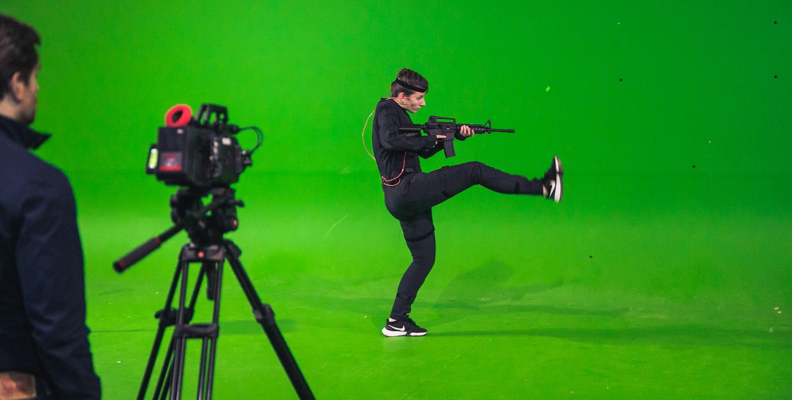
Chroma key software is a video editing tool that removes a specific, solid-colored background from your footage (usually blue or bright green). It makes that color transparent, allowing you to layer your subject over completely different videos, virtual sets, or images.
In other words, it lets you replace the color background with pretty much anything your imagination can think up. Chroma key is often referred to as green screen or green screen software because green is the most common color that gets used for this. However, blue, and sometimes yellow, can also be used.
The important thing is less the color, more that it lets you replace that color with whatever you want. So whether you want to insert some flashy special effects, a virtual background that would be impossible to realize in the real world, or simply a location that it's not practical for you to travel to shoot, chroma key is the solution to your requirements.
There are some requirements for getting good results from chroma key. For example, your back cloth, whatever color it is, needs to be smooth and wrinkle-free. And you need to have good, consistent lighting as well - the better and more consistent the lighting, the better the quality of your chroma key will be. This also helps to avoid "fringing" or green spill, whereby you get a little border around anything you try to chroma key out.
Of course, the other thing you need is some great software!
How We Chose the Best Chroma Key Software
Choosing the right software is an important part of the process. To decide what software to use, there are a number of factors to consider.
Firstly, of course, is price. While expensive packages might be able to produce Hollywood-quality chroma key, you don't necessarily have to spend a fortune to get the best results. Some much cheaper packages can produce remarkable results, and just spending big bucks isn't always the key to the best results.
Ease of use is important as well. If a package has a steep learning curve, you might get frustrated and give up before you even get to grips with what the software can do. Skill level varies greatly between software, so it's good to know how much effort you will need to put in.
Inevitably these days, AI plays a big part in what a software package can do, so understanding the technology that underlies the results can also be an important part of what makes a package worth using.
And platform flexibility can be a big question mark too. Are you restricted to one operating system? Can you use the software on the go on mobile devices like a tablet or smartphone?
It's also worth knowing whether there's a free trial version available. Being able to test out the software before using it is a great way to know whether it's going to be the right choice for you.
So, with all that in mind, let's see what's out there!
Best Chroma Key Software in 2026
Vegas Pro
Since Vegas Pro came to Boris FX, the software has gone from strength to strength, and when it comes to green screen work, you couldn't ask for a better piece of software.
The drag-and-drop interface for the native chroma keyer makes getting your video projects started easy and means the learning curve is pleasingly low (and it's great with both green and blue screens, which isn't always the case). That means you will have minimal spill and fringing as well.
The workflow is easy to use and intuitive for newcomers but more than powerful enough for experienced hands to get the best out of it as well. And masking and tracking make it easier than ever to ensure your subjects are isolated from the background.
Vegas Pro continues to grow, and its chroma key abilities are just one of many reasons why.
Pros:
- Simple to use, powerful results.
- Real-time workflow makes everything clear.
- Powerful audio editing with real attention to detail.
- The Color Corrector (Secondary) plugin is a great tool if you're having issues with your footage.
- Powerful masking and tracking results in great isolation.
- Free trial version available.
Cons:
- Render can take time, depending on your hardware.
- Motion blur can occasionally cause issues.
Cost: $8.33 p/m Vegas Pro, $12.50 p/m Vegas Pro Plus, $16.66 p/m Vegas Pro Ultimate
Platform: Windows only
Best For: Any social media content creator, audio-heavy productions, visual effects gurus
Adobe Premiere Pro
It's probably not a big surprise to see Adobe appear on this list. Adobe Premiere Pro has been around for a long time, and it's a mature, developed, and professional video editing tool that lets users chroma key to their heart's content.
Although Adobe products can often come with a steep learning curve, chroma key is no real exception to this. Having said that, there's a lot of precision involved too, so you know the results are going to be good. Keying is precise, whether you're using a green background or a blue one, and the results are impressive.
As always with Adobe products, you have access to Adobe Creative Cloud, so you don't need to worry about storage or syncing.
Pros:
- Powerful, industry-standard software.
- Precision keying that keeps spill to a minimum.
- Creative Cloud integration.
- Wide variety of file formats and codecs.
- Seven-day free trial version available from Adobe.
Cons:
- Adobe products = subscription.
- Deeper learning curve.
Cost: $34.4 p/m or $263.88 per year if paid annually.
Platform: Windows, macOS, and an iOS version for iPhones
Best For: Industry professionals already familiar with Adobe software or anyone looking to up their skill level.
DaVinci Resolve
In some ways, DaVinci Resolve has become something of a one-stop-shop for video editing. It continues to expand its ever-growing list of abilities with its chroma key offering, which produces the sort of quality results you would expect.
The Delta Keyer gives Resolve a real edge and provides a professional level node tool that lets you eliminate your green or blue screen with incredible precision. It also lets you adjust the luminance and color ranges with great precision, which makes a real difference too.
Finishing options are really good in DaVinci Resolve as well, so you can be certain the look of your final project will be exactly what you want. Matte finesse options mean you can get rid of background noise and have crisp, clear edges with no spill.
Of course one of the great features of DaVinci Resolve is that you don't need to pay a fortune to access it - nearly all of the features you will need for green screen work are available in the free version, which is remarkably fully functional.
If you want to get started with chroma key and need a good jumping-off place, DaVinci Resolve is a good place to begin.
Pros:
- So much functionality available for free!
- Delta keyer produces fantastic results.
- Finishing options can make a real difference to the end result.
- Studio version, which is even more powerful, is available if you decide you want to go the upgrade route.
Cons:
- Heavy on system resources unless you have a powerful machine.
- Can struggle a bit with compressed codecs.
Cost: Standard version is free, Studio Edition $295 (perpetual license)
Platform: Windows, macOS, Linux, iPadOS
Best For: Learners, people on a limited budget, social media creatives
CapCut
CapCut may not be as well known a brand as Adobe, but it's a powerful tool and a really good choice when it comes to green screen and chroma key work. And like DaVinci Resolve, CapCut's main software is free.
One of CapCut's strengths is its AI, which it uses to remove the background. This is a powerful tool that results in fantastic removal and can even be used to intelligently removed backgrounds that aren't isolated by a green screen. It also greatly simplifies the process when compared to manual tools.
There's a lot of precision that a user can exert over this process but it can also be done quickly and easily, giving a blend of power and ease.
Media can be stacked in the timeline too, making it simple to apply backgrounds to multiple different clips. This is intuitive and easy to use, keeping learning to a minimum while you get on with your creation.
Spill shouldn't be much of an issue with CapCut either, and its built-in tools allow you to clean up any spill, adjust shadows to keep it to a minimum, and soften edges so spill becomes less visible.
CapCut also comes with a large number of free plugins, as well as special effects, backgrounds and other assets that will let your creativity flourish without having to break the bank.
CapCut is a powerful chroma key tool and one well worth having in your arsenal.
Pros:
- Can't argue with the cost - free!
- AI background removal produces great results.
- Excellent and dealing with potential spill issues.
- Big library of resources available even in the free version.
- Web version available and will run on any browser.
Cons:
- No advanced color grading - you need to use the pre-made filters.
- Audio editing is simpler, so you might want to consider alternatives (like Vegas Pro) if you have a lot of audio editing that needs to be done.
Cost: Main tool is free, Standard plan $9.99, Pro Plan, $19.99 (or $179.99 p/a)
Platform: Windows, macOS, iOS/iPadOS, Android HarmonyOS, browser.
Best For: Casual use, anyone learning, hobbyists.
HitFilm Express
Another entry into the free tools category, HitFilm Express is video editing software that has a focus on VFX capabilities. That includes, of course, chroma keying.
One of the areas that HitFilm Express excels in is dealing with uneven lighting. Bad lighting is the bane of green screen work but HitFilm Express has some great tools to help deal with this, including the ability to choke (that is, reduce) your selection, smooth out any rough lines that may appear during the process, and feather the edges.
The masking and rotoscoping tools will help you if you screen doesn't quite manage to fill the frame, and you can create shapes quickly and easily.
There are also special spill removal tools as well, and HitFilm Express can automatically get rid of the color bleed if you find it occurring.
While it's true that HitFilm Express isn't as powerful as some of the editors in this list, if you need something quick, easy, and straightforward, it's a tool worth considering.
Pros:
- Simple, easy to use, and intuitive.
- Great spill suppression.
- Masking and rotoscoping very good for a free package.
- Free!
Cons:
- Export quality is capped at 1080p.
- Not fast.
Cost: Free
Platform: Windows, macOS
Best For: Beginners
OBS Studio
Not all green screen work is concerned with producing Hollywood blockbusters, and sometimes a piece of software can come along with a more specific market in mind. Thus it is with OBS Studio, a piece of software geared towards live streaming.
If you're a Twitch streamer or use another streaming platform like YouTube, OBS Studio's real-time live chroma key filter lets you put any background you want behind you while you're streaming. It's very simple to use too - all you need to do is choose the chroma key filter, adjust the transparent color range with the sliders until you're happy, then off you go.
The processing carried out by OBS Studio is in real time and doesn't require heavy rendering, which is what makes it so ideal for a live scenario.
There's also a wealth of community support and loads of plugins available if you need an effect that doesn't have a physical background.
Streamers might not be as visible a market for green screen but that doesn't mean they don't exist, and with OBS Studio they now have an ideal piece of software to enhance their streaming.
Pros:
- Simple, effective, and just works.
- Real-time processing means no rendering time.
- Great for hardware acceleration too, especially with a hardware encoder.
- OBS Studio is open source, so that means it's free.
Cons:
- If you're encoding in real time, you're going to need hardware powerful enough to do it.
- No multi-streaming as native - you need to use a third-party plugin if you want to stream to more than one platform simultaneously.
Cost: Free
Platform: Windows, macOS, Linux
Best For: Live streamers
Comparison Table
| Software | Best For | Platform | Free Version | AI Features | Skill Level |
| Vegas Pro | Content creators, audio producers, VFX gurus | Windows | Trial | Yes, extensive | Semi-professional, professional |
| Adobe Premiere Pro | Professionals | Windows, macOS, iOS | Trial | Yes, extensive | High, professional |
| DaVinci Resolve | Beginners | Windows, macOS, iOS, Linux | No (free) | Yes, limited | Medium |
| CapCut | Casual users | Windows, macOS, iOS/iPadOS, HarmonyOS, Browser | No (free) | Yes, extensive | Low / Beginner |
| HitFilm Express | Beginners | Windows, macOS | No (free) | No | Beginner |
| OBS Studio | Live streamers | Windows, macOS, Linux | No (free) | No | Intermediate |
Final Words

Green screen might seem like a complex process but with good software and a little know-how, it can be as simple as it is powerful. And now you know what software to use, you can unleash your inner creativity!