How Beat Detection Works in Vegas Pro
In this article, you’ll learn how to use the Beat Detection feature in Vegas Pro to detect musical hit points in your audio tracks and sync cuts and transitions to the audio beat to make more energetic videos.
Let’s dive in!
What Is Beat Detection?
Beat detection uses computer software or hardware to analyze audio signals and identify musical beats, tempos, and rhythmic onsets. It looks for sudden spikes in sound energy (transients) within the low-end and mid-range audio frequencies, which often signal the start of a note or drum hit.
The Beat Detection software maps these hits onto a timeline and calculates beats per minute (BPM) to generate a visual beat grid or markers. Its common applications include placing markers to snap cuts and transitions directly to the rhythm and to sync loops, effects, and visualizers to a track’s tempo for DJing and live performances.
How Does Beat Detection Work in Vegas Pro?
The Beat Detection tool in Vegas Pro analyzes the audio spectrum of a music or video file to automatically locate musical beats, drum hits, and any interesting sound events in the low-mid and low-end of the audio frequency range. The tool marks these highlights, and these markers act as snap objects, allowing you to easily edit video to the musical beat when you add a new file to the timeline.
The great thing about the Vegas Pro Beat Detection tool is that it works on any audio file besides music, with full control over sensitivity. You can use beat detection for an interesting audio event in a video file, such as alarms, explosions, or door slams. Beat Detection analyzes the mid- to low-frequency range, detects the audio event, and marks anything it finds energetic.
Now that you know how it works in Vegas Pro, here are some use cases where Beat Detection makes video editing easier and more creative.
- Highlighting significant audio events in a video clip for more precise editing.
- Editing music videos to sync with the beat of the music.
- Identifying and marking special and symbolic moments in audio files.
- Synchronize video effects such as lighting and glares to the audio.
How to Use Beat Detection in Vegas Pro

Follow this step-by-step guide to use Beat Detection to edit to the rhythm of your video content.
Step 1: Set Up Your Project
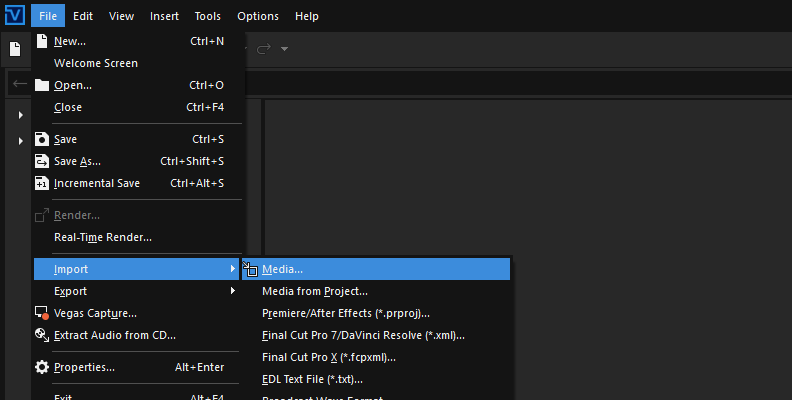
Create a new project and import the audio and video files that you need for your video project.
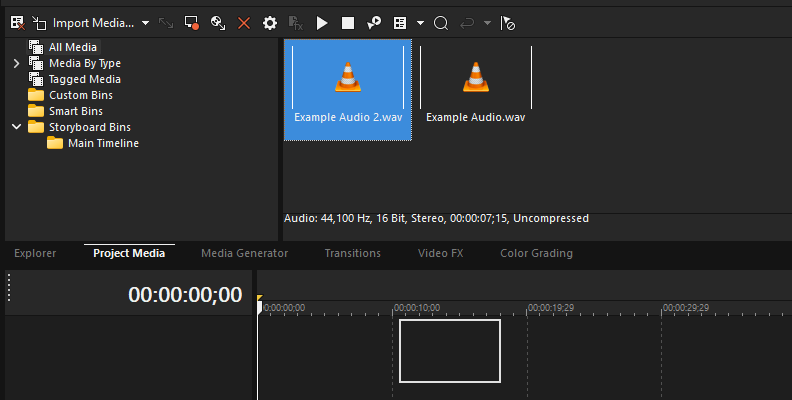
Drag the audio file from the Project Media window to the timeline. It can be a single music or audio file in a new audio track, or you can use a video file with music or audio.
Step 2: Beat Detection
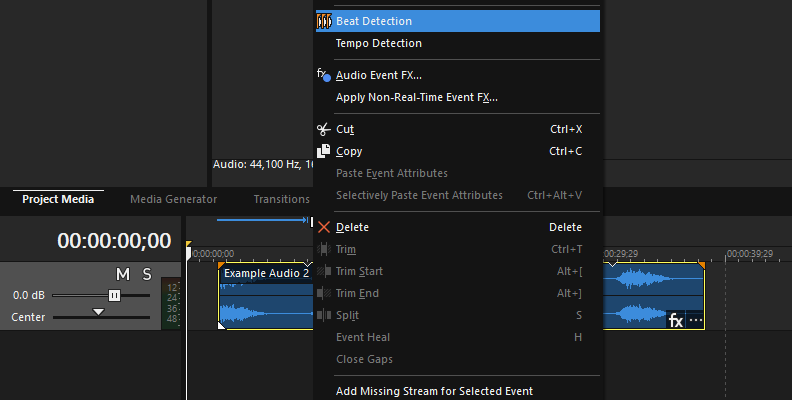
Right-click the audio track in the timeline that holds the music you want to use for beat detection, then find and click Beat Detection from the menu. Wait for Beat Detection to analyze the audio.
Step 3: The Trimmer Window
Once Beat Detection analyzes your audio file, it will open in the Trimmer window with markers indicating the detected beats in the audio track, and a Sensitivity dialog box will pop up on your screen.
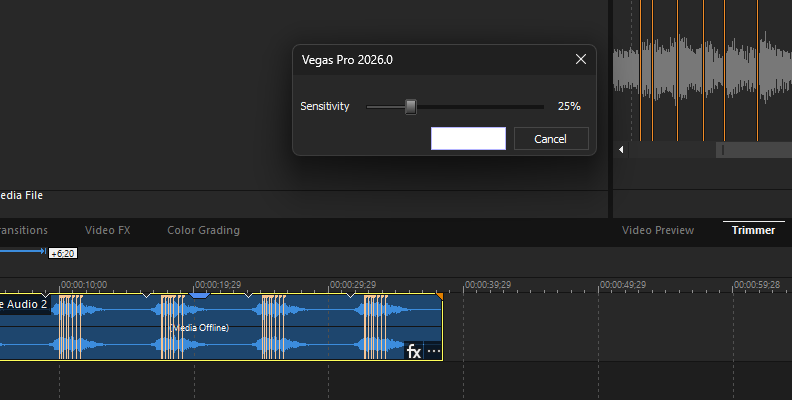
Increase sensitivity to detect fewer markers (targets only strong, heavy downbeats) and decrease sensitivity to generate more markers (captures smaller transients like snares or hi-hats). Press OK and the markers will appear on both the Trimmer window and the audio clip event in the timeline.
Step 4: Fine-Tune the Beat Markers
These markers represent where the Beat Detection tool picks a hit pattern, telling you that it is a suitable position for a transition or to identify an important audio event. However, when you press play, you may notice a marker sounds off. You can manually adjust the markers from the Trimmer window, and all changes you make will also appear in the audio track event.
Step 5: Edit the Video
The beat marker works as a snap object. Moving and trimming video events in other tracks will snap them to the beat marker to make spot-on edits and transitions. Continue editing your video and keep audio synchronized with your effects and cuts.
How to Add Beat Markers to Your Vegas Pro Timeline
First, import an audio track into the timeline. Right-click it to bring up the menu and select Beat Detection. Set the sensitivity and wait for Beat Detection to finish processing the audio track. Once you click OK, the beat marker will appear on the selected audio track in your timeline.
Here are some useful tips to edit with beat markers:
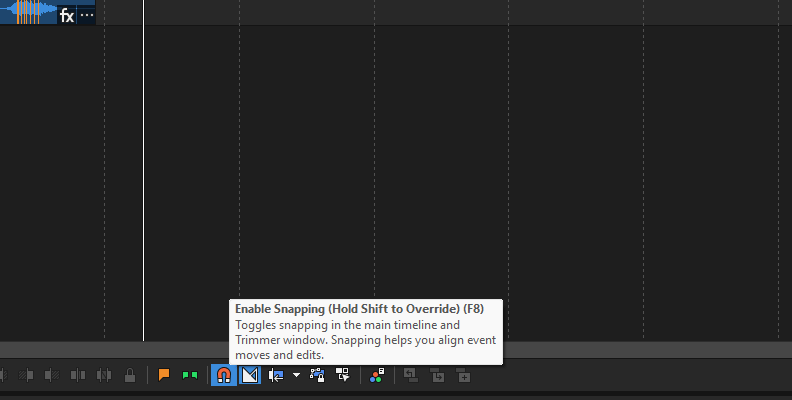
- Ensure Snapping is enabled on the toolbar or press F8 to make the video event edges snap directly to the beat markers.
- Edit the beat marker in the Trimmer window, and changes will transfer to the timeline.
- You can add additional manual beat markers by pressing M while playing back audio in real-time.
- Save markers for future projects: in the Trimmer window, click the three dots icon and select Save Markers/Regions. This will embed the marker metadata in the audio file, preserving beat locations for future projects with the same audio file. If the file does not support metadata, Vegas Pro creates a sidecar file that holds the metadata.
How to Use Beat Detection for Music Videos
If you edit music videos, using beat markers as snapping guides is the best editing technique you can adopt in your workflow. Beat Detection makes cutting a music video to the audio rhythm accurate and fast.
Save these useful tips to edit music videos with Beat Detection:
- Enable snapping (press F8) and drag the video clip edge on the other video tracks to snap it to the beat marker.
- Align multiple camera angles using the beat markers as a guide to split or switch camera to the rhythm of the beat.
- Use track adjustments to align effects such as flash transitions, brightness, lens flares, or zoom over the beat markers so your visual effects trigger in time with drum hits or bass drops.
- You don’t need to cut at every beat marker. Use fast cuts at the most energetic moments, like choruses, to avoid visual overload.
- Save the markers if you will be editing multiple versions to promote the music video, so you don’t have to repeat the Beat Detection process each time. Go to the Trimmer window and click the More icon (the three dots button) and select Save Markers/Regions.
Final Words
Whether you edit vlogs, music videos, short films, or any type of audio-visual content, Vegas Pro’s Beat Detection feature is a simple, quick way to edit videos and synchronize them to the rhythm of an audio file. You can go further using Continuum filters like Beat Reactor, featured in Vegas Pro Ultimate 2026, to get the best-looking visual effects in time with the rhythm of your audio track.
Have fun, and stay creative!