How to Blur Part of a Video with Vegas Pro
Blur is a well-known effect among video editors and is very useful for both artistic and practical reasons. In today’s article, you’ll learn the most common reasons to blur only part of a video and how to do it using Vegas Pro. Additionally, because you sometimes have to blur moving objects, you’ll find a guide to three methods for blurring a moving object in Vegas Pro.
Let’s dive in!
Why Would You Blur Part of a Video
Reason 1: Maintain the Anonymity of Individuals
If you are making documentaries, it's important to safeguard the anonymity of people, especially random strangers or passersby who do not consent to appear in your film, or participants who prefer anonymity. For the same reasons, if you make vlogs, it’s important to learn how to blur other people's faces, children, and brands in your videos.
Reason 2: Protect Sensitive Information
Sometimes you film on the street and catch a license plate, a parked car, an address, or a phone number written on a piece of paper or on an ID card. Whether by accident or because it’s part of something you want to present, protecting this information is crucial, as you don’t want it to become public for security reasons. If you’re not sure something should or should not appear in your video, blur it.
Reason 3: Draw Attention
Blur can also be useful to remove distractions. For example, blurring the background in a shot in a crowded environment keeps the audience focused and engaged on a subject. You can also use blur to draw attention to little details in a specific part of the frame. For example, in a close-up of a person crying, you can blur the face except for the tear to enhance the emotion of the scene.
Reason 4: Visual Effects
Another good reason is to use blur as a visual effect for stylish looks. Examples include an action scene to simulate speed, a dreamy sequence to add mysticism to the scene, or a depiction of an altered state of mind by blurring the entire frame or some edges to simulate a point-of-view from the character’s perspective. This is a common effect for waking up, losing consciousness, or dizziness.
How to Blur Part of a Video with Vegas Pro

In the following guide, you’ll learn to blur a specific part of a video in Vegas Pro for any of the reasons described above.
Step 1: Import Video and Duplicate Video Track
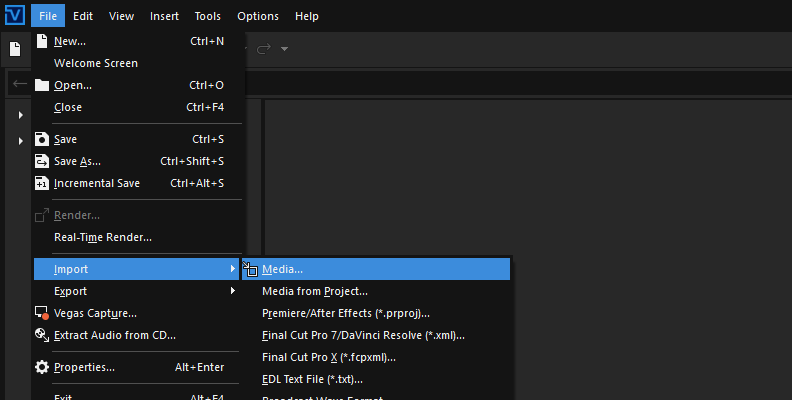
Import the video footage with the content you want to blur, then drag it to the timeline.
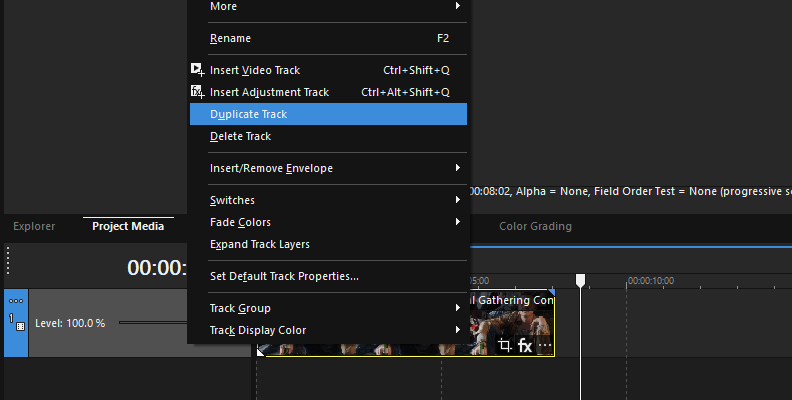
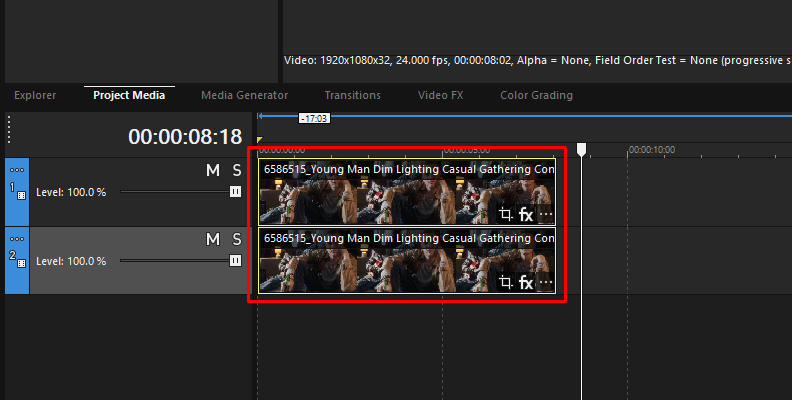
Next, let’s duplicate the video track to create two isolated layers, one for the background and one for the blurred region.
To achieve this, right-click the track with the video clip and select Duplicate Track. Make sure both video tracks are directly on top of each other and aligned.
Step 2: Apply the Blur Effect
Apply the blur effect to the top track. Click the Video FX tab in the main panel and search for Gaussian Blur. The Default preset is a good start, but you can choose another preset if you prefer.
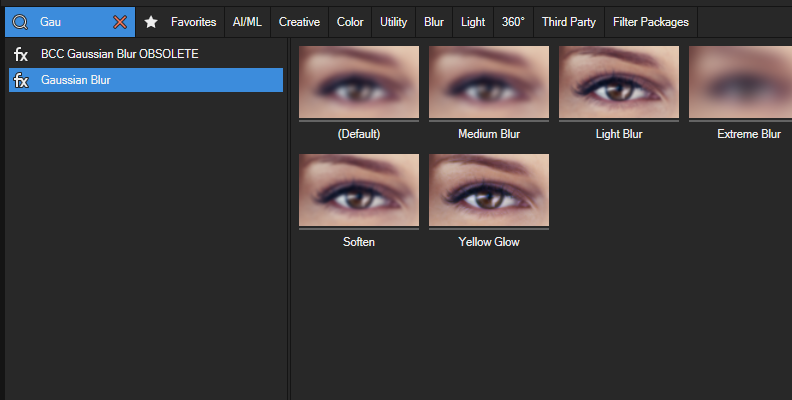
Drag the Gaussian Blur effect to the top duplicated track on the timeline.
The Gaussian Blur effect window will open with only two sliders to set the amount of blur in your image. You can preview the blur effect in the preview window, which will appear on the entire image for now. Adjust the horizontal and vertical blur sliders until you achieve the desired blur strength.
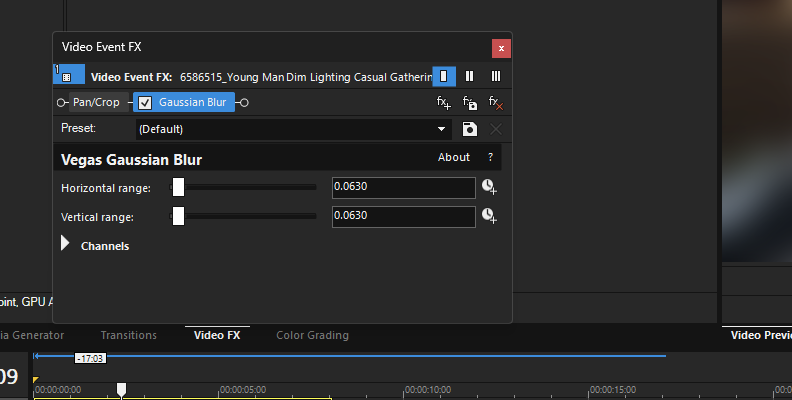
Step 3: Create a Mask
If you are still on the Event Effect window, click the Pan/Crop tab. If not, click the Pan/Crop icon on the right edge of the top video clip. The one next to the fx icon.
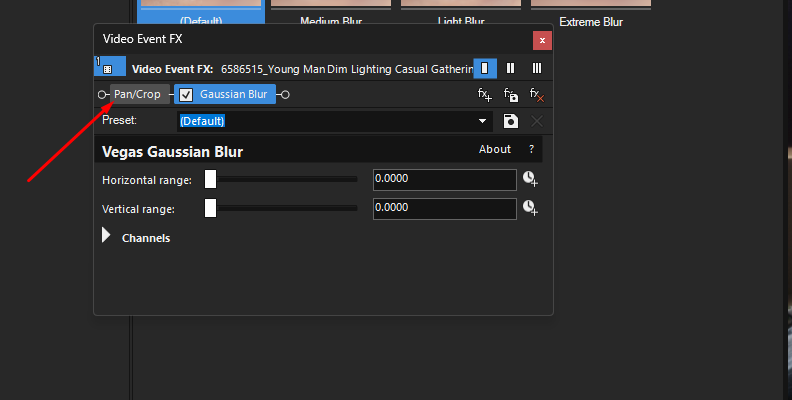
Once in the Pan/Crop tab, check the Mask box at the bottom-left corner of the window.
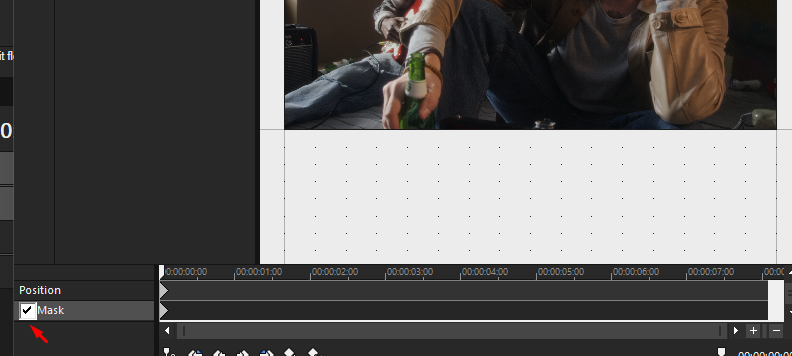
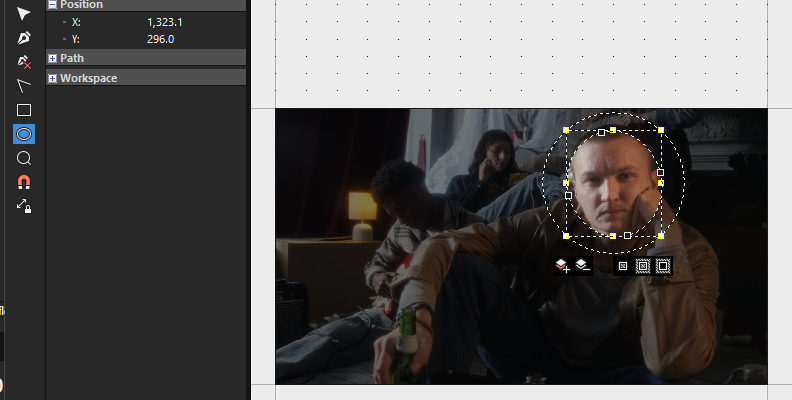
Next, select a tool from the left toolbar to draw a mask over the subject or object you want to blur in the image. The Rectangle Tool or the Ellipse Tool are easy to use for license plates and faces.
Click and drag over the object in the preview window in the Pan/Crop tab to draw a mask and release when done. You can adjust and resize the mask to cover everything you want to blur. You should notice how the blur is isolated to the area of the mask shape.
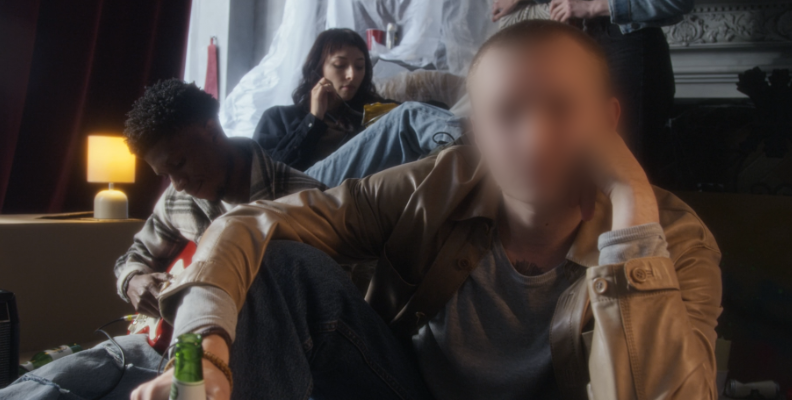
To make the blur more subtle, click the Path settings to display more options and locate Feather type. Click on it and choose between In, Out, or Both. Then, adjust the Feather % to smooth the hard edges surrounding the blurred area.
How to Blur a Moving Object
Often you’ll find that objects you want to blur are not still, especially when dealing with passersby or moving cars. In Vegas Pro, you have a few ways to blur moving objects in your video clips.
Method 1: Manual Keyframing
The fastest and easiest is manual keyframing. It’s easy, but it can be tedious and time-consuming if you have a long shot with lots of blurry faces to track. But for a simple person or car moving across the screen, manual keyframing can save the day.
Start by duplicating the track with the video and applying the blur effect to the top track. Next, open the Pan/Crop window. At the bottom of the Event Pan/Crop window, you have a timeline cursor. Click and drag it to find a frame where the object is completely visible and draw a mask around the object using one of the shape tools from the left toolbar.
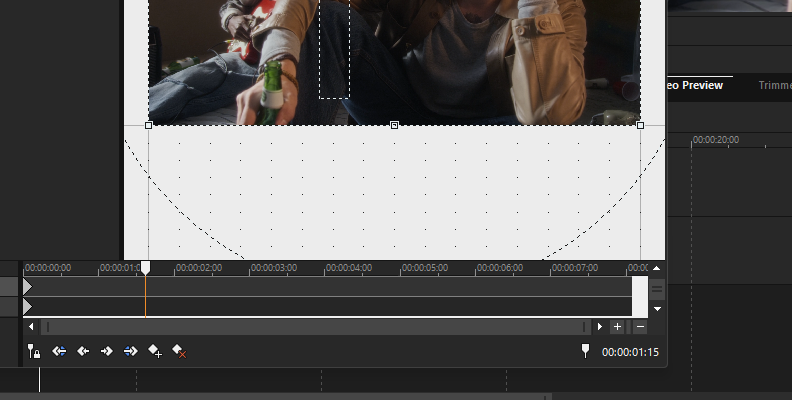
At the bottom of the Event Pan/Crop window, you have a timeline cursor. Click and drag it to find the moment the blurred object starts to move, or simply click to the position where you know the movement starts.
Move and adjust the mask to the position the object moves, ensuring it covers all the objects. Continue moving the timeline cursor forward in short spaces and repositioning the mask over the object. Each time you move the mask, Vegas Pro will automatically add a keyframe in the Event Pan/Crop window timeline to animate the mask position.
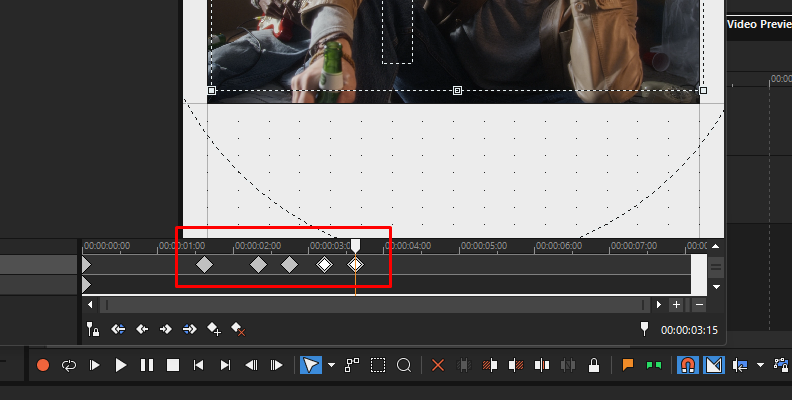
Play the event and adjust the mask shape as needed.
Method 2: Smart Masking
This method uses a Vegas Pro effect to mask and track the object's movement. But it requires a bit of setup.
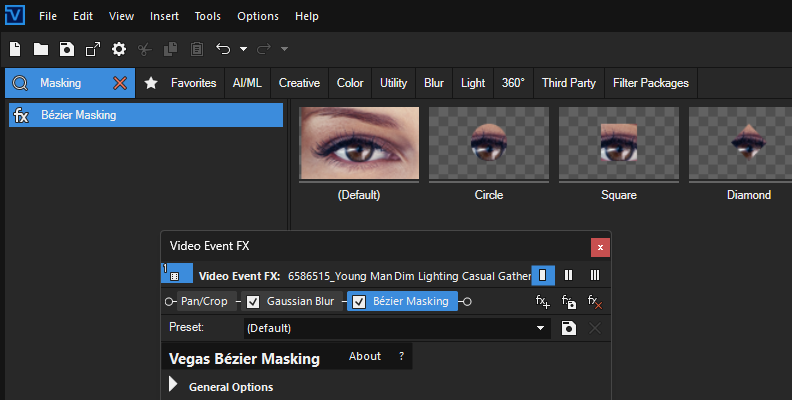
Add the Blur effect to the video event. Then, add the Vegas Bezier Masking effect, ensuring it’s located after the Blur effect in the Event FX Window.
In the Video Event FX window, expand the Mask 1 section and choose a shape under Type.
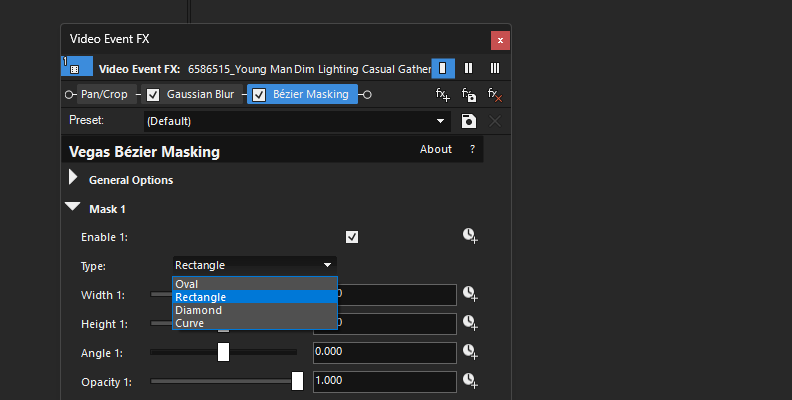
For a custom shape, select Curve, check the Edit Mode box, and draw around the object in the video preview, then uncheck Edit Mode. Adjust the Feathering if you want to blend the edges around the mask smoothly.
To track, click Motion Tracking, set the Precision according to the speed of movement, and select a Mode depending on how the objects move:
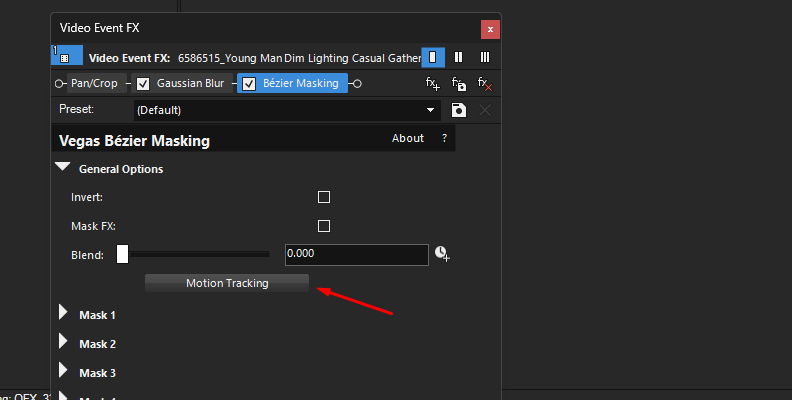
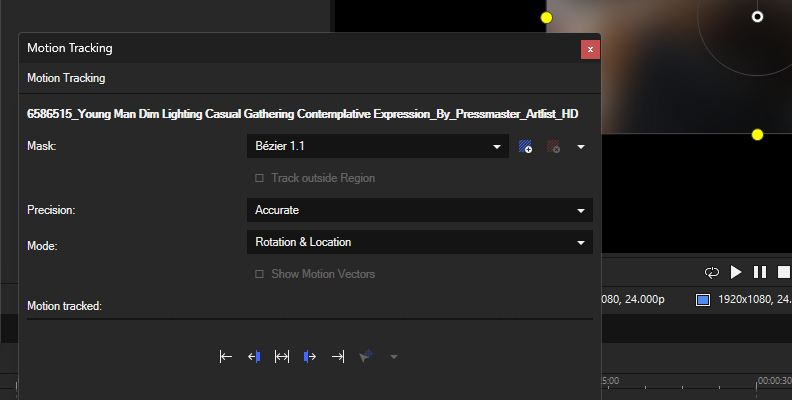
Location: for basic horizontal or vertical movement across the screen.
Rotation and Location/Scale: best for objects that spin or move toward or away from the camera.
Perspective: For 3D orientation changes such as turning heads.
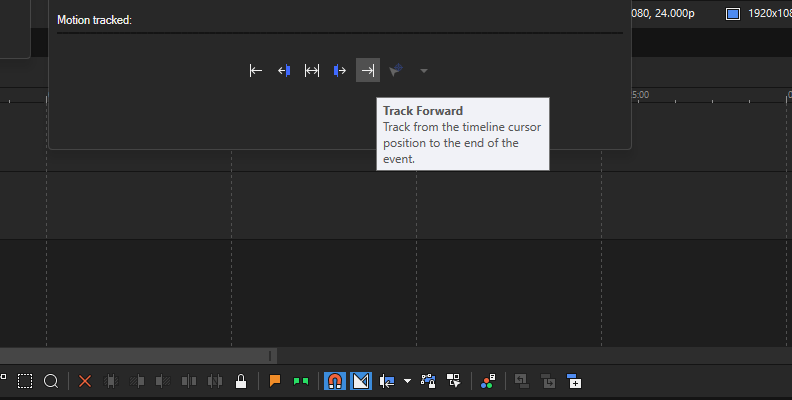
Place the timeline cursors at the frame where the object is more visible and click Track forward/backward depending on the position of the timeline cursor. Vegas Pro analyzes the video frame-by-frame and automatically creates position and scale keyframes to lock the mask to the target object.
Method 3: BCC+ Witness Protection ML
BCC Witness Protection ML (part of Boris FX Continuum and available in Vegas Pro Ultimate) is designed specifically for blurring, pixelating, or obscuring moving targets. It automatically finds human faces in every frame and generates a mask for every face that it finds. It speeds up the masking and tracking process and saves you time compared to traditional manual face tracking.

Go to the Video FX tab in Vegas Pro and search for BCC Witness Protection. Drag and drop the effect onto the video event on the timeline.
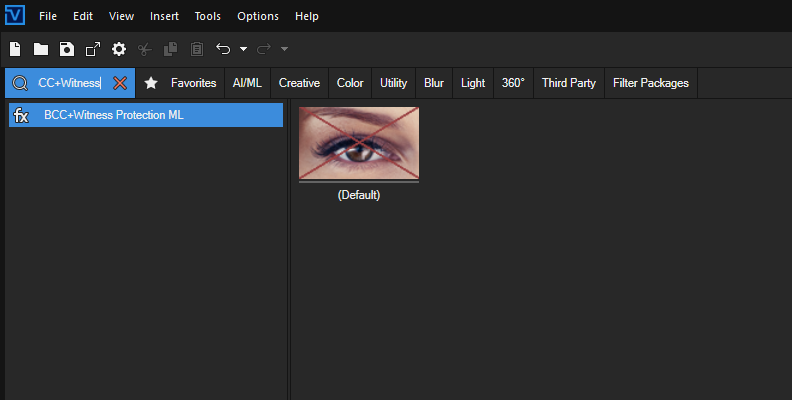
In the Video Event FX window, select the Face Detection model. The plugin will automatically detect faces across the shot and place oval obscuration masks over them.
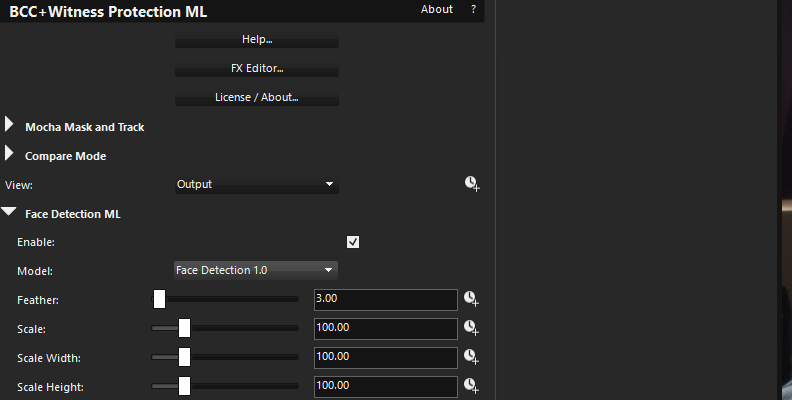
Adjust Scale, Scale Width, and Scale Height if the generated oval is too small or large for the target faces.
Adjust Smooth Motion to reduce jitter and movement in the face tracking, and Feather to blend the outer mask edges smoothly into the background.
Final Words
Vegas Pro is an all-in-one video editing software with all the tools you need to achieve professional results; whether you're working on a simple still image you want to blur or a complex moving object, Vegas Pro and Boris FX plugins make our editing tasks easier.
Good luck!