How to Sync Audio and Video Vegas Pro
Recording video and audio separately is ideal when you want to achieve the best quality in your productions; we capture video with a video camera and audio with a professional, high-quality external microphone. This setup gives you both high-quality video and audio.
The challenge comes in the editing room, where you need to sync the external microphone audio with the camera video. In today’s article, you’ll learn what causes audio sync issues in your videos and how to sync audio with video in Vegas Pro.
Let’s dive in!
Why Audio and Video Can Become Out of Sync
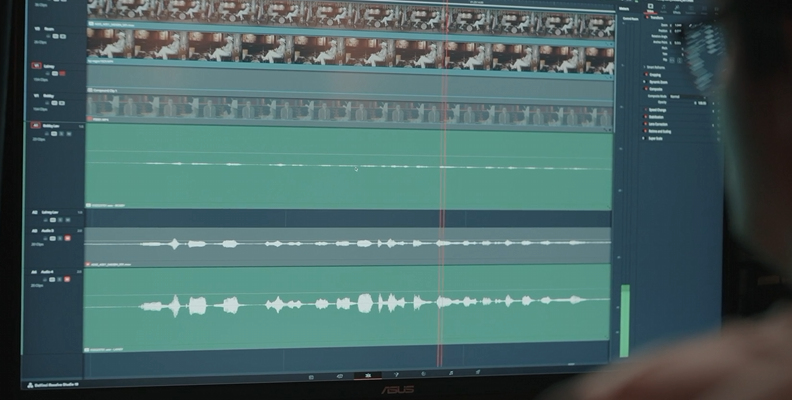
Recording Audio and Video Separately
This is the most common reason audio and video get out of sync. Recording with different devices, like a phone, camera, and external audio recorder, creates multiple video files you need to sync in video editing software. To make the sync process easier, filmmakers use a slate or ‘the clap’ technique to sync the audio with all cameras.
Recording Voiceover During Editing
When you record a voiceover while editing, or re-record dialogue that wasn't captured properly, the clip may be hard to sync perfectly, making the new recording out of sync with the sequence.
Moving Audio and Video Clips During Editing
Most of the time, synced media is grouped, but if you unlink the clips and forget to link them again, or unlink them by mistake and then you move the video event, it will get out of sync.
Slipped Audio
During filming, audio recorders and cameras may have delays that cause the audio track to fall out of sync with the footage. This is a common issue with digital devices, but it’s easy to fix in post-production.
Sample Rate and Frame Rate Mismatches
Another common cause is recording audio at 44.1 kHz instead of the standard video sample rate of 48 kHz, which causes the audio to drift over time. Or when using different frame rates in your editing timeline. You can fix these issues with stretching techniques and by ensuring your video project matches your source footage frame rate.
How to Sync Multiple Audio and Video in Vegas Pro from Different Sources - Automatically
Follow these steps to edit and sync media in Vegas Pro. I’ll show how to sync audio and video in different scenarios.
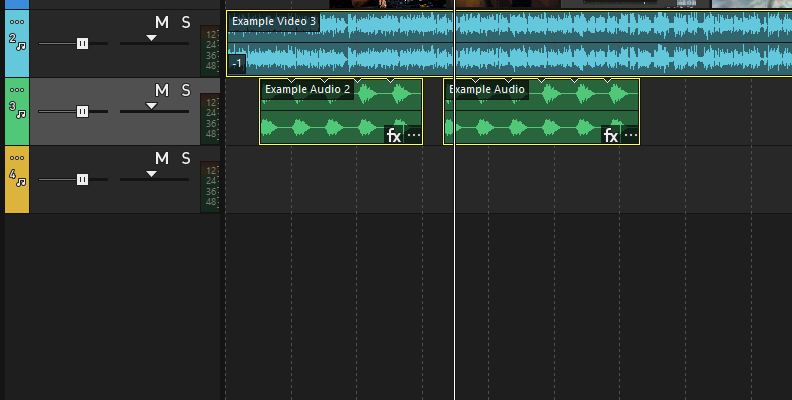
When you work with multiple video and audio clips from different cameras and audio recorders that you want to sync, Vegas Pro offers an automatic solution to avoid ungrouping, syncing clip by clip, then grouping events.
Step 1: Import Video Files
Import all the video and audio files that you need for your project. Drag all your video and separate audio files onto the timeline. Hold CTRL and click to select the audio and video events that you want to sync on the timeline.
Step 2: Run the Sync Tool
With your clips selected, go to Tools > Multicamera. Then select “Synchronize Mixed Audio to Align Events.” Vegas Pro will automatically analyze the waveforms and slide the clips into alignment.
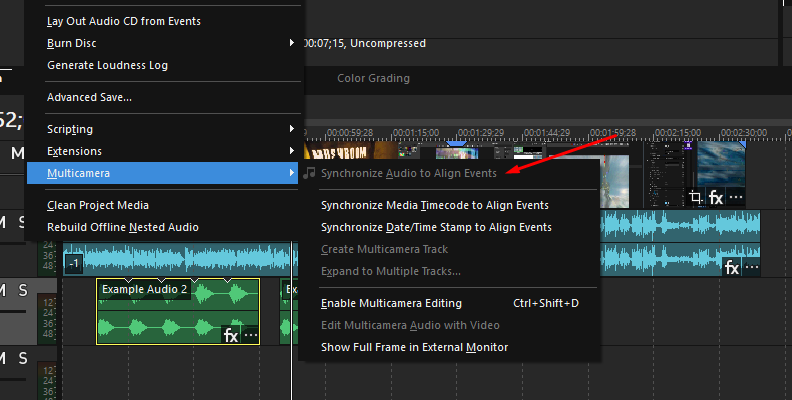
Step 3: Enable Multi Camera Editing
Now that audio is synced from your camera sources, select the tracks and go to Tools > Multicamera > Create. Then, enable multicamera editing from the Tools menu: Multicamera > Enable Multicamera Editing. Play the video and select the takes you want active with the synced audio.
When you’re done, turn off Multicamera Editing from Tools > Multicamera > Enable Multicamera Editing. Continue editing and export the final video.
How to Sync Audio and Video in Vegas Pro - Manually
Step 1: Fixing Video Out of Sync
Let’s start with a video recorded with both audio and video using the same device, but with audio out of sync.
- Import the video files into a new VEGAS Pro project.
- Drag the video footage to the timeline.
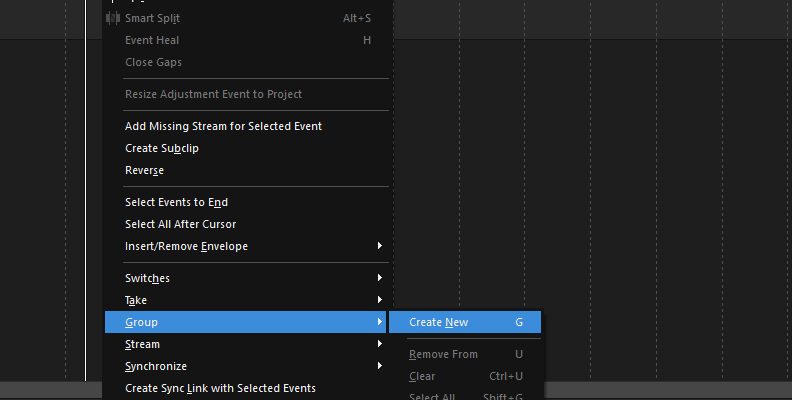
- Select the audio track and press U, or right-click the audio track and select Group > Remove from. This will ungroup the two events (audio and video) so you can move them independently.
- Drag the audio event to sync it with the video.
- Replay the video clip until the audio is synced.
- You can group the events again by pressing G or right-clicking and selecting Group > Create New. This will keep the audio and video tracks in sync if you need to move the video clip in the timeline.
- Continue editing the video and export.
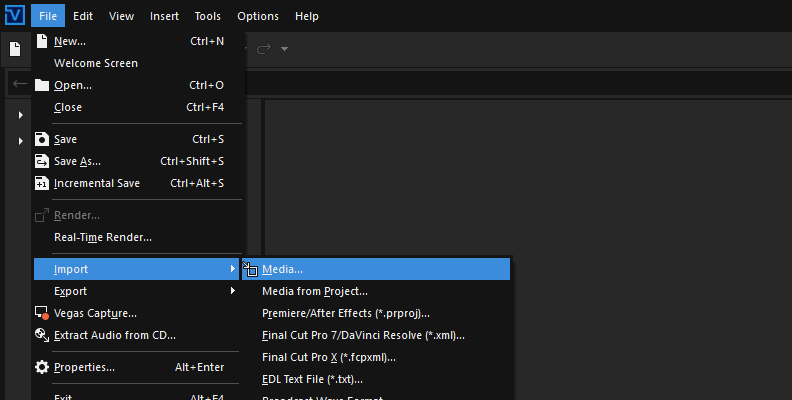
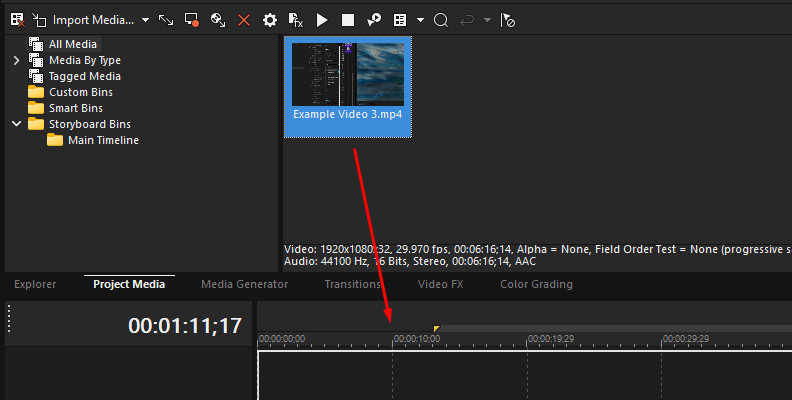
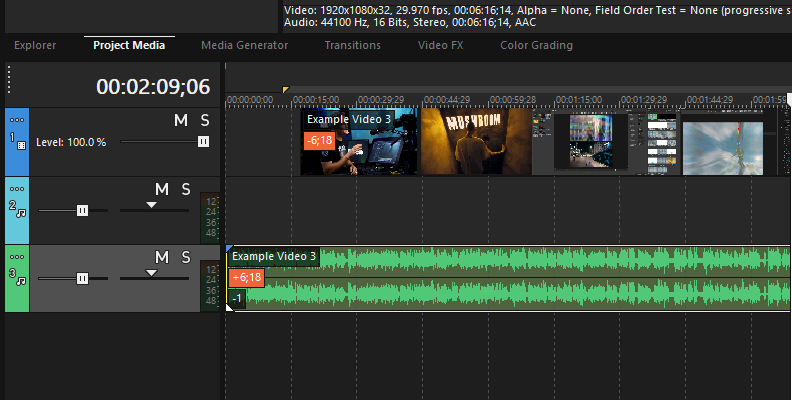
Step 2: Syncing Audio and Video From Different Sources Manually
Next is a scenario where you record audio and video on different devices.
- Import the video and audio files into Vegas Pro.
- Drag the video file to the timeline. Click and drag with the left mouse button to create a synced video and audio track (if the video was captured with audio, such as from a camera or phone).
- Next, drag the audio track from the high-quality microphone to the timeline, below the video clip.
- Move the audio track to align it with the video track. Use the waveform as a visual guide.
- Play the video until you hear the audio in sync.
- Select the video clip and ungroup the video from the original audio by pressing U.
- Mute the original audio clip from the camera or remove it.
- If you remove it, you can move the synced audio clip from the microphone to the track that previously held the original camera audio.
- Select the synced audio and video clips and press G to group them.
- You can continue editing the video without worrying about the videos going out of sync again.
Step 3: Syncing Video with Another Audio File
Our last scenario is where you want to sync a video clip with a voice-over audio file.
- Import the audio and video files into your project.
- Right-click the video clip and drag it to the timeline. When you release the right-click, a menu will pop up where you can choose to import Video or Audio only. Select Video Only > Add Video Across Time.
- Add the audio file below the video track and align it to the footage.
- Select the audio and video clip, then press G to group the events.
Final Words
Video and audio syncing doesn’t have to be tedious work. Once you get familiar with the Vegas Pro workflow, you can sync audio and video clips with professional quality. Take the time to learn keyboard shortcuts and the sync tools to speed up the process, and remember to use slates or the clap technique during shooting to make syncing easier, with cues to align the audio more precisely.
Whether you film audio and video separately, or work with a multicamera setup, you don’t need to fear the syncing process, thanks to Vegas Pro.
Good luck, and stay creative!