
What Is Planar Motion Tracking?
- With Planar Motion Tracking, you can track objects that are not necessarily square to the camera, like the side of the building seen from perspective or a moving video screen, and pin other video or images to that object to follow along with the tracking, changing shape as needed to maintain the changing perspective of the object it’s pinned to.
- The process of Planar Motion Tracking is split up over two different effects in VEGAS Pro, the Bézier Masking effect and the Picture In Picture effect. Combining these effects, we can add posters to moving walls, create “living” paintings like you might see in magical worlds, replace what’s happening in windows passing by with anything we like, or, as in this example, replace a video device’s screen with new video, all while everything is in motion!
- It’s a multi-layered approach, but in this tutorial, we break the process down into easy steps.
Using the Bézier Masking effect, we’ll follow these steps:
- Add the Video You Want to Track
- Apply the Bézier Masking Effect
- Create Your Mask
- Apply Motion Tracking
Then, using the Picture In Picture effect, we’ll:
- Add the Video You Want to Pin
- Apply Picture In Picture Effect
- Pin Your Video
- Reorder Video Tracks and Check Your Pin
- Copy Motion Tracking to PiP
- Manually Adjust for More Precision
Read on and follow along as we dive into Planar Motion Tracking!
Bézier masking
We’ll use the Bézier Masking effect for the first half of pinning and tracking objects to your moving video. In it, we’ll define the area which we’ll replace with the new image, and do the actual motion tracking, which we’ll apply to the new video later with the Picture In Picture effect.
Step 1
- Add the video with the object you want to track to the project
- Click to place your cursor at the beginning of the event
- Play your project.
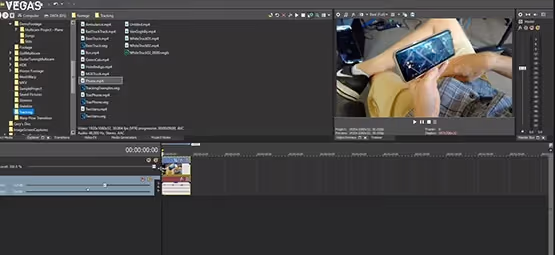
If there is a lot of motion in your clip, the camera will likely change perspective, causing a perspective change in objects in the image. For our example, the clip includes a man holding a tablet or phone or mobile device, and you want to lay another image onto the screen. To do so, you will need to track these perspective changes.
Upscale video in Vegas PRO 17
- Easily upscale your footage using AI technology
- Fewer artifacts and blurring than traditional tools
- Works inside Premiere, After Effects, Avid Media Composer, and more
Step 2
- Select the area of the screen where the object appears
- Use the tracking tool to draw a bounding box around the device's screen. Ensure the box is snug around the edges to capture the object's movement accurately.
- This will allow the software to analyze the motion and maintain the overlay in alignment with the original footage.
Step 3
- Import the video footage
- Load the video footage into the software where the overlay will be applied. Make sure that the frame rate and resolution are compatible for a seamless integration.
Step 4
- Adjust the overlay settingshe video with the object you want to track to the project
- Customize the overlay's appearance by adjusting its opacity, size, and position. This ensures that it blends well with the original footage and enhances the viewer's experience.